
Encrypted contents. Encrypted details.
AES-256-GCM authenticates file contents and the index holding filenames, file types and dates. Each vault has its own random master key.
ENCRYPTED PHOTO & FILE VAULT FOR IPHONE
Some things are just for you.
Vault encrypts your photos, videos and files
and locks them behind a pattern only you know.


VAULT, UP CLOSE
20 APP SCREENSYour private space, from the first hello to the copy you keep elsewhere.
Camera screens use a simulated sample scene in the native app. The camera interface stays dark in both appearances.
Setup & access
A private place for your photos, videos and files. No account required.
Your library
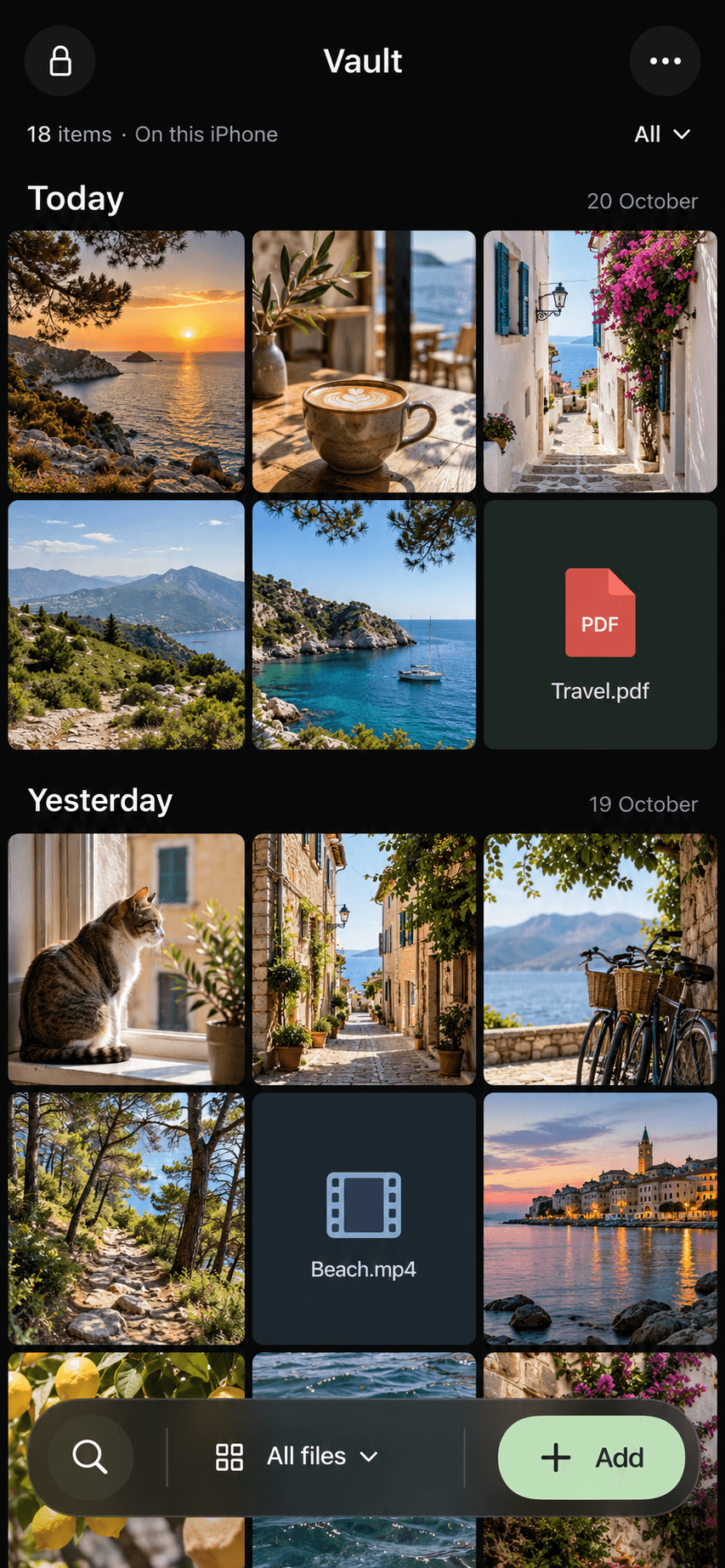
A contact-sheet gallery for photos, videos and files, grouped by import date.
Your library
Open Secure camera, import from Photos & videos, or browse Files. Imported originals stay where they are.
Secure camera
Take a photo inside your vault, with camera switching and flash controls where supported.
Secure camera
Review your photo, then retake it or save it encrypted to the open vault.
Secure camera
Record with optional audio. This sample shows the recording controls with Silent video selected.
Backup & recovery
Create a manual encrypted snapshot, verify a saved archive, or plan a restore.
Setup & access
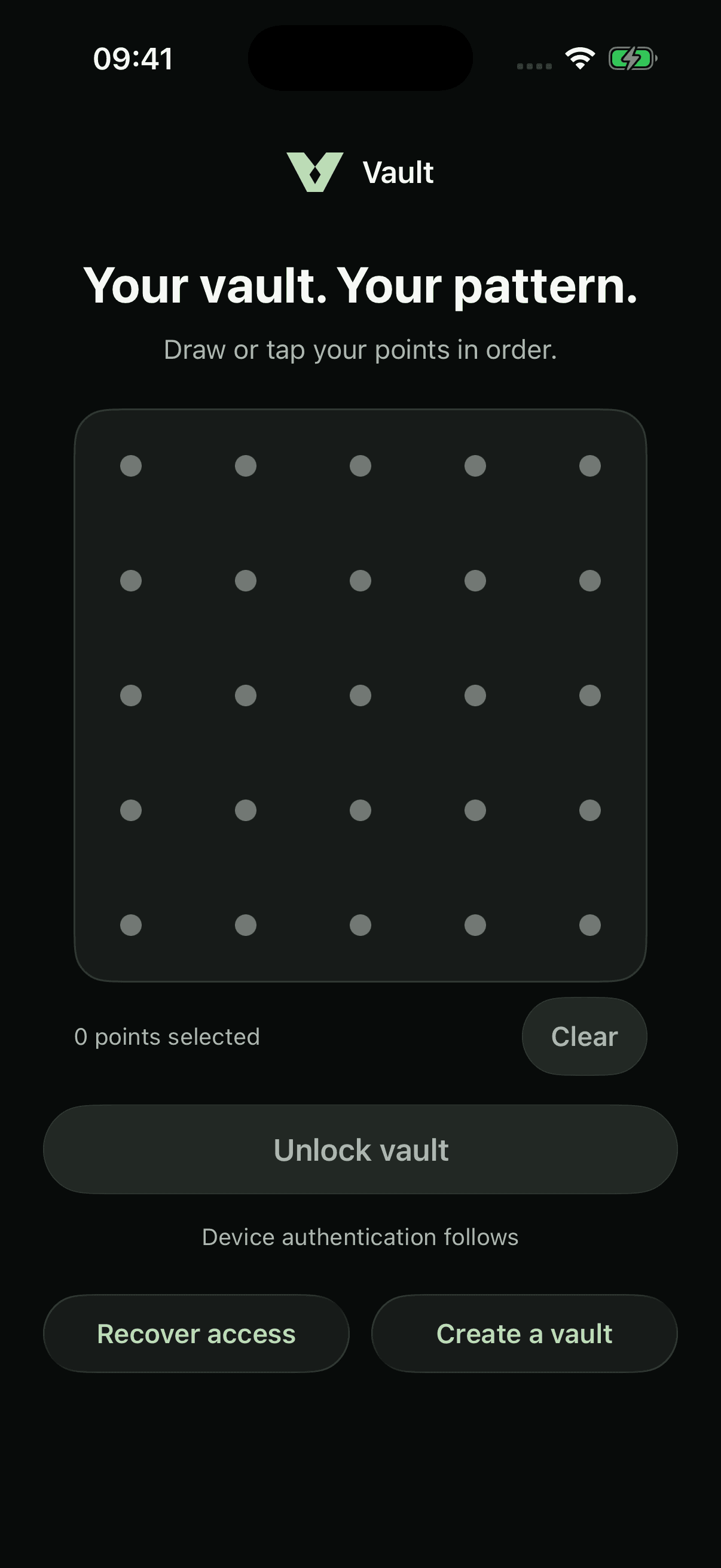
Choose your pattern on the 5×5 grid, protected alongside this iPhone.
Setup & access
A familiar way back into your vault, followed by device authentication.
Your library
Search your filenames and return to the right document in a few taps.
Your library
Open an item in the native viewer before deciding what to do with it.
Your library
Select several files, then export originals or confirm deletion of vault copies.
Your library
Follow file counts and encryption progress, with cancellation when you need it.
Backup & recovery
Use matching recovery words to regain access to existing vault files.
Setup & access
An introduction to your pattern, recovery words and first private files.
Backup & recovery
Choose an encrypted archive and its matching recovery words to restore into a new vault.
Your library
Switch between a photo grid and a file list.
Settings & personalization
Find protection, backup and personalization controls in one place.
Settings & personalization
Choose app artwork and a name for your Home Screen shortcut.
Settings & personalization
Review the optional destructive duress setting before choosing whether to arm it.
Current app captures with sample files. Choose a device and appearance. Select a screen to take a closer look.
01 / THE WHOLE PICTURE
Visit the feature directoryFrom the way you unlock to the copy you keep elsewhere. Explore every part of Vault.
Take photos and record video inside Vault, review your capture, then save an encrypted copy without adding it to Photos.
Explore featureRecovery words stay on the iPhone’s system keyboard, even when you reveal them to check your spelling.
Explore featureMore room for your private space, with layouts that adapt to iPhone Duo’s changing display.
Explore featureAES-256-GCM protects your files and the details that describe them, right on your iPhone.
Explore featureA pattern on a 5×5 grid works together with protected device authentication to open your vault.
Explore featureDifferent patterns open separate encrypted spaces, without a visible vault list or count in the app.
Explore featureAn ordinary vault can hold files you are comfortable showing, while your other spaces stay separate.
Explore featureExplicitly arm one vault to survive while its next pattern unlock removes the other local vaults.
Explore featureLeaving the app locks the vault. A privacy cover hides its windows when the app becomes inactive.
Explore featureChoose a quieter icon for your Home Screen, or add a separate tile with a name you pick.
Explore featureA local iPhone app with no account, backend, advertising or analytics in the current build.
Explore featureImport from Photos or Files in batches. Vault creates encrypted copies and keeps your originals in place.
Explore featureBrowse by date, search filenames, filter file types, and choose a grid or list that suits you.
Explore featureOpen a file, export originals individually or in batches, and confirm removal of vault copies.
Explore featureSee file counts, byte counts and transfer progress, with cancellation that preserves completed imports.
Explore featureTwelve generated words provide a separate way back into existing vault files if normal access is lost.
Explore featureSave an encrypted snapshot through Files, verify the saved archive, and keep a copy outside your iPhone.
Explore featureUse an encrypted archive and its matching words to create a fresh independent vault while preserving existing ones.
Explore featureThe hero shows the approved design preview. The screenshot galleries show the current app on iPhone 18 Pro and iPhone Duo.
02 / SECURITY, WITH SUBSTANCE
Encryption for your files. Protection for your access. And a clear explanation of where those protections begin and end.
Read the full security modelAES-256-GCM authenticates file contents and the index holding filenames, file types and dates. Each vault has its own random master key.
Argon2id-derived pattern protection works with a device-only Keychain secret. System authentication is required alongside the pattern.
No Vault content server or account. Twelve recovery words unlock existing files; verified manual encrypted backups protect a saved snapshot.
Independent security review is still pending. Keep your originals and verified backups.
03 / HOW IT WORKS
Follow the full walkthroughChoose a pattern, confirm your device authentication, and safely store your 12 recovery words.
Start with setupAdd encrypted copies of photos, videos and files. Search, preview and export when you choose.
Meet your librarySave and verify an encrypted snapshot elsewhere. Vault locks when you leave the app.
Make a backup planMORE THAN ONE SIDE TO YOUR LIFE
Different patterns open independent vaults. The app shows the space you opened, with no visible catalog of the others.
Explore hidden vaultsKeep less-sensitive files in a normal vault. Opening it leaves your other spaces intact.
About decoy vaultsExplicitly arm one vault to survive while its next pattern unlock removes other local vaults. External copies survive; words alone cannot restore deleted files.
Understand duress modeHidden in the app does not mean invisible on disk. Filesystem examination can reveal encrypted containers and their count.
04 / GOOD TO KNOW
Privacy should feel simple.
So should the answers.
Yes. Choose Add → Secure camera in an unlocked vault. Take a photo or record video with optional audio, review it, then save it encrypted. Captures are never added to Photos. Photos stay in memory before saving; video uses a temporary file protected by iOS until encrypted save. Closing the camera or leaving the app discards unsaved captures. Include saved captures in your next manual encrypted backup.
LESS PUBLIC. MORE PERSONAL.

A private home for your photos,
videos and files. On your iPhone.